Work Order Software That Connects the Office, Technician and Customer
Opsler is work order software for field-service contractors. Create the work order, assign it, let the technician execute it with or without a signal, close it with photographic proof and a signature, and turn it into an invoice — on one record nobody has to retype.
Free forever on Budding — 2 seats (1 admin and 1 technician), 50 jobs a month. Pro is $25 per seat per month, no seat minimum, with a 14-day trial and no card.
Work order
One record, start to finish
- Customer and site
- Address, phone, past visits
- Service
- Pricebook item, price, tax
- Checklist
- Required and optional steps
- Parts used
- Van stock, cost, location
- Labor
- WORK and PAUSE intervals
- Proof
- Before photos, after photos, signature
- Money
- Draft invoice, discount, warranty lines
Completion is blocked until a before photo, a customer signature and an after photo are all on the record.
Customer, technician and job detail on one record — status updates as the technician moves through the visit.
What Is Field-Service Work Order Software?
Field-service work order software carries a customer’s service request from arrival to payment: the scope of work, the site, the technician, the schedule, the parts and labor consumed, the evidence it was done, and the invoice that follows.
Search results for work order management software mix two products that share a phrase and little else. One maintains your own equipment inside your own building. The other handles work that travels to somebody else’s address and ends in a bill. Opsler is the second kind: HVAC, plumbing, electrical, pest control, appliance repair, cleaning and similar trades.
A field-service work order
Raised by a customer. Travels to their address. Carries a price they agreed to, proof the work happened, and an invoice at the end.
An internal maintenance work order
Raised inside your own operation against your own asset. Never leaves the building, never gets invoiced, driven by a maintenance schedule rather than a customer.
Still working out which category you are shopping in? Start with what field service management software is.
Work Request, Estimate, Job and Work Order: What Changes?
The trade uses these four words loosely, and vendors use them differently again. Here is what each record is in Opsler, and what happens at each handover.
Work request
Demand, not commitment
A call, a self-booking from your website, or a lead you chased. It creates the customer and captures what they say is wrong. Nothing priced, nothing scheduled.
Estimate
A priced proposal
One price, or three tiers as Good, Better and Best. Approved with a six-digit code emailed to the customer plus a typed or drawn signature.
Job
The schedulable unit
What sits on the dispatch board with a date, a time slot or flexible window, a priority and its technicians. Converting an estimate carries the chosen tier across — pick Better and you get the Good and Better items, not the Best ones.
Work order
The record of the visit
Everything attached to that job: checklist, notes, before and after photos, WORK and PAUSE intervals, parts off the van, signature, warranty and invoice.
The handover that costs contractors most is estimate to job, where agreed prices get retyped and quietly changed. See how an approved estimate becomes a scheduled job.
The Complete Work Order Lifecycle
Field service work order management breaks in the handovers — the agreed price retyped into the job, the parts written on the back of a work order and keyed in at six o’clock, the invoice rebuilt from memory two days later. Most work order software owns part of this and hands the rest to a second product. In Opsler the whole work order lifecycle runs on one record, which is why the address, the part number and the agreed price are entered once and read everywhere after that.
- Step 1
Request or estimate
A call, an online booking, or an approved estimate.
- Step 2
Create
Customer, site, service, checklist and priority on one record.
- Step 3
Schedule
A fixed time slot or a flexible all-day window.
- Step 4
Dispatch
Assigned on the board, pushed to the technician's device.
- Step 5
Field execution
On My Way, Arrived, In Progress — signal or not.
- Step 6
Proof
Before photo, checklist, parts, labor, after photo, signature.
- Step 7
Invoice
Sent from the field, or held for office approval first.
- Step 8
History
Filterable record with warranty and reschedule reasons.
Steps three and four happen on the live dispatch board, where every technician has a lane and unassigned work sits in a queue beside them.
Create Consistent Work Orders Faster
Two technicians hand back two different-looking jobs because the office wrote the work order two different ways. Opsler fixes that at the source: give a pricebook service a default checklist once, and every work order raised against it arrives with the same steps, each marked required or optional.
- Pick the customer — site address, phone and past visits come with them
- Choose the pricebook service; its price, tax rate and default checklist copy across
- Set a fixed start time, or a flexible window for anytime that day
- Set priority, estimated duration and the technicians assigned
- Add billable extras, custom parts, a discount and a parts or labor warranty
- Decide there and then whether this invoice needs office approval before sending
Then make the board speak your language. Your statuses are yours to name, colour and order — Awaiting Parts, Second Visit, Needs Quote, whatever your shop actually says out loud — and you choose which ones open a job, which close it and which moves are allowed, so nobody skips a step that costs you money. When you create work orders from an approved estimate or an online booking, the customer travels with the record, so the job can never drift onto the wrong account.
Start free and create your first work orderNew work order
Customer
Marisol Reyes — 214 Oak Ridge Dr
Service
AC diagnostic and repair
Scheduled
Fixed · 09:00 – 11:00
Priority
High
Technician
D. Okafor
Invoice approval
Required before sending
Checklist copied from the service
- Photograph the unit before starting
- Check refrigerant charge
- Record model and serial in job notes
- Photograph the completed repair
Schedule and Assign the Right Technician
Work order scheduling software earns its place the moment two jobs want the same hour. Opsler puts every technician in a lane, every unassigned job in a queue beside them, and tells you what you are about to break before you commit.
- Drag a job into a technician's lane, or Quick Assign for a one-click send
- Day, Week and Map views — chronological lanes, the whole week, or sites on a map
- Conflict detection at assignment, grouped by technician and naming the clashing job
- Exact-time collisions, overlapping windows and same-day clashes told apart, with assign-anyway when the emergency outranks the booking
- Team scoping, so a dispatcher only sees the technicians they manage
- Assignments and reschedules reach the technician's device immediately
- Route optimization on Pro — the day planned in the right order, so another job fits in it
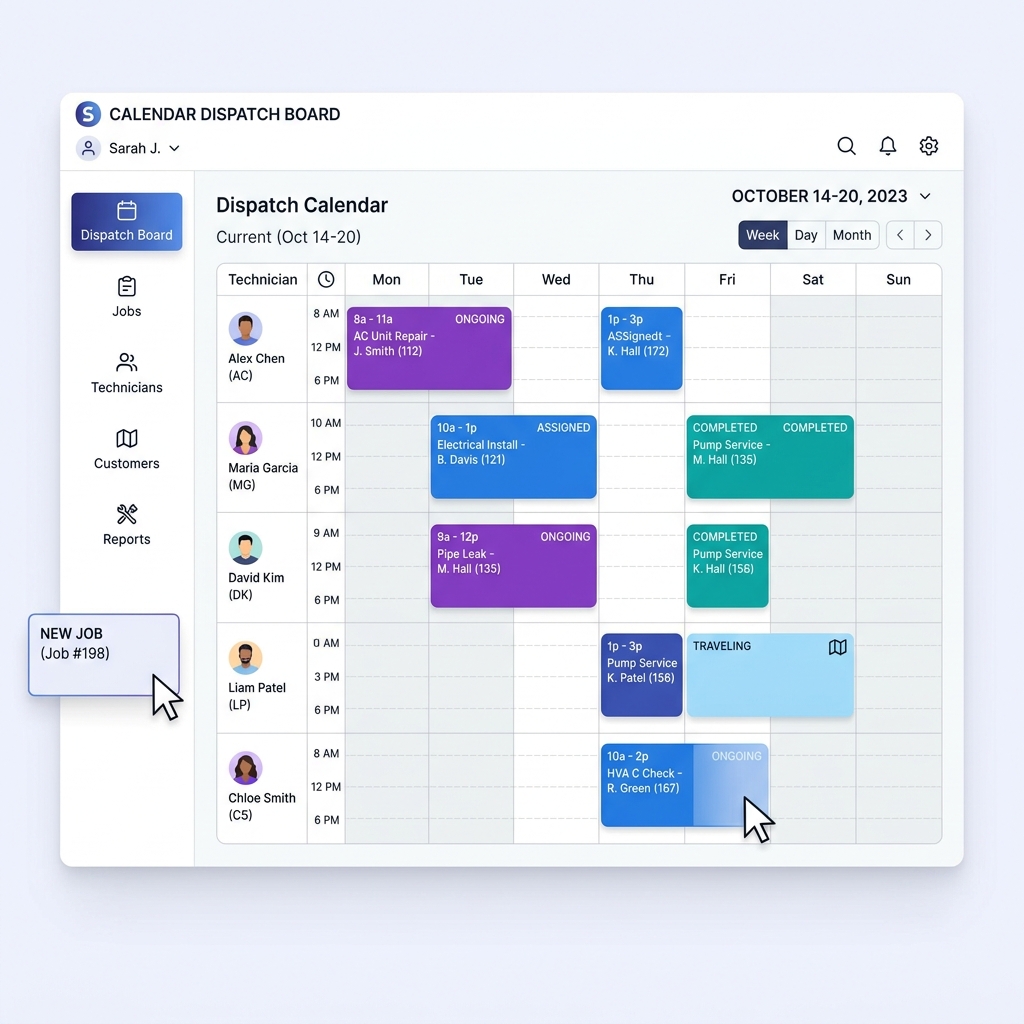
Nothing gets assigned behind your back. A named dispatcher makes every call, and the board shows what that call costs before it is committed — so your best technician goes where you meant to send them, and you know what it does to the rest of the afternoon before you let go of the mouse. See how you schedule and dispatch work orders in detail.
Let Technicians Complete Work Offline
Plant rooms, crawl spaces, rural properties, the third basement of a commercial block. Most mobile work order software degrades to a read-only screen down there, and the paperwork gets rewritten in the van from memory.
Before you lose signal: Sync for Offline
One tap caches seven things onto the device.
With no connection at all, a technician can still:
- Open today's work with the full work-order detail and customer history
- Move the job through On My Way, Arrived, In Progress, Paused and Resumed
- Update the ETA and tick off checklist items
- Capture before and after photos and write the completion notes
- Build the draft invoice, pulling parts from van stock
- Take the customer's signature on the finished work
- Complete the job and record the payment on site
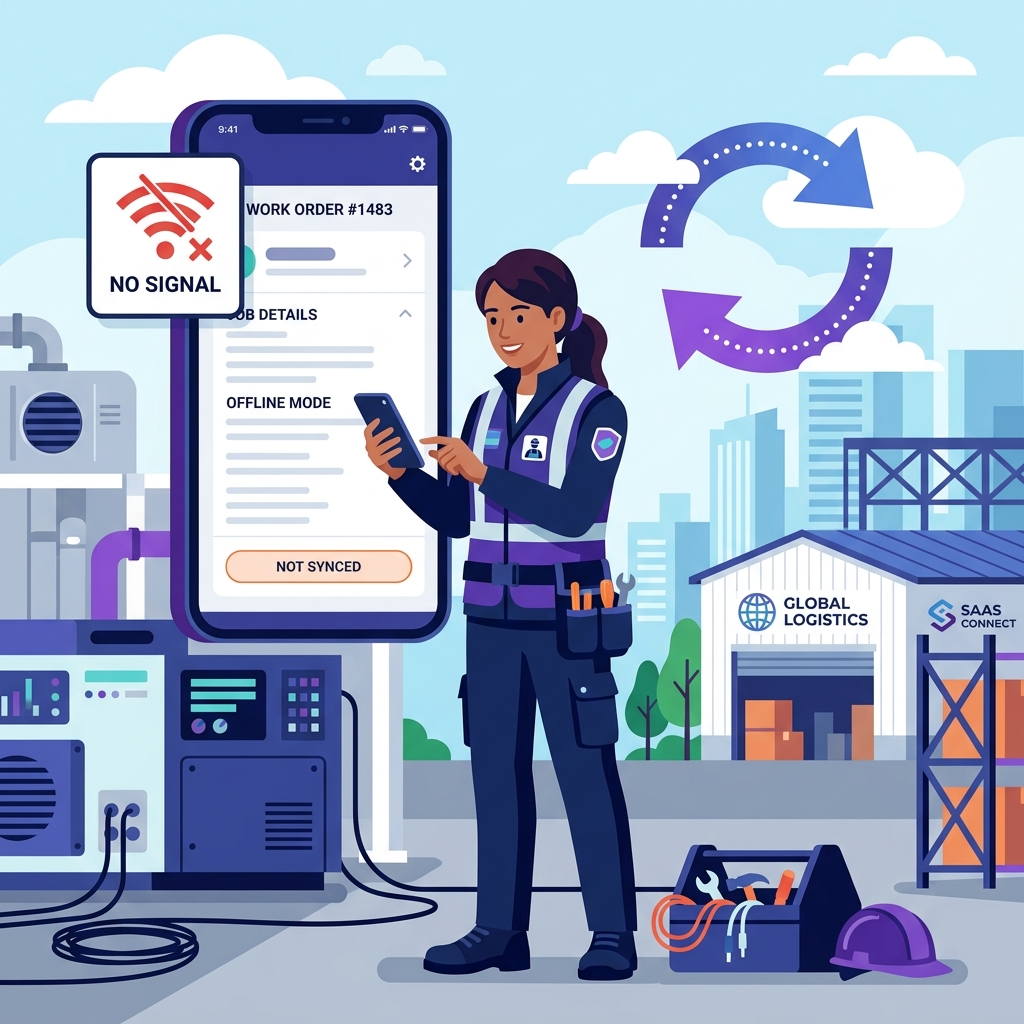
Everything replays in order the moment signal returns — no export step, nothing re-entered, nothing lost. A payment taken in a basement is protected, so a retrying sync can never charge your customer twice, and a full day of photos fits comfortably on the phone the technician already owns.
The app installs from a supported browser on Android, iPhone, laptop or desktop — no App Store or Google Play download, so a new technician is working on their own phone the morning they are hired.
See how technicians complete work orders offlineCapture Labor, Parts and Proof of Work
Work order tracking software is only worth what reaches the record. Opsler puts closeout on the same screen the technician is already holding and holds the job open until the evidence is there — so the parts get billed, the hours get billed, and the photographs are on file the day a customer decides to argue about either.
Labor, as intervals
Time is recorded as WORK and PAUSE intervals rather than one total, and a pause carries its reason — parts run, lunch break, waiting for the customer. Billable minutes and dead time are separated on the record, not estimated afterwards. If a technician forgets to pause, an admin corrects the worked time on the job — recorded, not silently overwritten.
Parts, from the van
Each part records the SKU, quantity, unit cost, total cost, the location it came from, who added it and when. Putting it on the invoice and consuming it from stock are one action.
Before and after photos
Stored as two separate sets, not one undifferentiated pile, so the condition found and the work delivered can each be shown on their own.
Signature and checklist
The customer signs on the technician's device, typed or drawn, stored with who signed and when. Checklist items record who completed them and at what time.
The closeout Opsler will not let a technician skip
- A before photo — checked against the offline queue too, so no signal is neither an excuse nor a blocker
- A customer signature, typed or drawn
- An after photo of the completed work
Miss one and the job stays open. It takes a technician forty seconds and it ends the callback that starts “that damage was already there”.
See how Opsler records labor time on every job and how it can track parts used on jobs across warehouses, trucks and vans.
Keep Customers Updated Without a Login
A customer work order portal that asks people to create an account gets used once. Opsler gives each job a private link instead.
- Live job status and the technician's ETA as it is updated from the field
- Pending estimates, approved with a six-digit code sent to their email
- The completed job detail once the visit is closed
- Invoice list and downloadable invoice PDFs
- Warranty coverage with the days remaining
- Chat with the technician while the job is live
The chat closes to read-only once the job is completed, so the thread stays on record without turning into an inbox your office has to staff. One link carries everything from the first ETA to the final invoice — the customer bookmarks it, checks it themselves, and stops ringing the office to ask where the technician is. Email delivers it, so there is no messaging account to open and no cost per update between you and a customer who feels looked after.
See how the customer portal works

Turn Completed Work Into an Invoice
Work order invoicing goes wrong in the gap between the technician finishing and the office billing. Opsler closes it by building the invoice during the visit — the pricebook service, the parts pulled from the van, the extras added on site and the labor recorded are on it before the technician taps complete.
Technician sends it directly
The technician reviews the invoice on the completion screen and sends it. The customer has it before the van leaves the drive.
Office approves it first
The invoice lands in the Pending Approval queue instead, where an admin edits and releases it — catching the zero-dollar invoice, the wrong discount and the charge nobody added. Set per job, so the trainee is reviewed and the veteran is not.
The money goes where it should: straight into your own processor account, at the rates you negotiated, with no platform fee skimmed off the top on the way past. At month end, Pro exports a QuickBooks- or Xero-formatted CSV your bookkeeper imports in minutes.
Turn completed work into an invoiceRecurring Work, Equipment and Warranty History
The second visit to a property should not start from nothing. Opsler keeps the agreement, the coverage and the history against the customer.
Recurring work orders (Pro)
Set the series once — daily, weekly, monthly or yearly, with an interval and the weekdays or day of the month it lands on, ending never, after a set number of visits, or on a date. Visits generate on the board on schedule, and the series is edited as a whole or one occurrence at a time.
Recurring maintenance contractsWarranty history (Pro)
Attach parts, labor or full coverage for 30 days, 90 days, 6 months, a year or a custom period. Raise a return visit as a warranty claim against the original job and the covered lines show as $0 with the original price struck through — the customer sees the value of the cover, you still see the real cost.
Warranty managementEquipment detail lives on the work order
Opsler puts equipment detail where the technician actually looks for it: in the job description and notes, on the checklist step that asks for a model and serial, in the before and after photos, and in the warranty attached to the job that replaced the part. Two years later, the person standing in front of that unit opens one work order and sees what was fitted, by whom, and whether it is still covered — without hunting through an asset database nobody in the van has ever opened.
Search, history and the audit trail
Every work order stays searchable. Filter by status, date range, technician, customer, team, priority or service type, or narrow to jobs that have photos, have notes, have customer feedback, are missing an ETA, or have nobody assigned. One-tap presets cover today, this week, overdue and unassigned.
- Reschedule history with a reason code — parts needed, customer unavailable, access issue, weather — plus who moved it and from what date
- Parts and custom charges stamped with who added them and when, and custom parts carry a written reason
- Checklist items stamped with who completed each one and at what time
- Live technician tracking on Pro, so the visit stands up on its own without anyone writing anything down
- Labor recorded as work and pause time on the job as it happens, so last month's hours still read the way they did last month
HVAC Work Order Example
HVAC work order software has to survive the no-cool call in August. Here is that call end to end, and what the work order carries at each step.
- 1
The call comes in
The dispatcher creates the customer, records the fault — upstairs unit running but not cooling — and books a same-day slot at High priority. Picking the AC diagnostic service copies its default checklist onto the work order: photograph the unit, check the refrigerant charge, record model and serial in the notes, photograph the finished repair.
- 2
It reaches the technician
The job appears in the technician's lane and lands on their device with the address, the fault, the checklist and every previous visit to that house — so they arrive knowing the unit is nine years old and the last engineer flagged the contactor.
- 3
On site
On My Way with an ETA updates the customer's portal link, then Arrived and Start Job. The before photo goes on the record. The diagnosis: a failed capacitor and a compressor near the end of its life.
- 4
The customer chooses
The technician builds a Good/Better/Best estimate on the spot — capacitor, capacitor with a longer parts warranty, or a new condensing unit — and sends it. The customer approves the middle option with the six-digit code emailed to them, and only the Good and Better line items carry into the job.
- 5
The repair
The capacitor comes off the van once: onto the invoice and out of van stock in the same action, at its real cost. The trip to the supply house is logged as a PAUSE with the reason parts run, so it is not billed as labor.
- 6
Closeout
The after photo goes on, the customer signs on the technician's phone, and a one-year parts warranty is attached. Opsler holds the completion until the before photo, the signature and the after photo are all on the record — and every bit of that works in a plant room with no bars, syncing when the van reaches the street.
- 7
The money
This account requires office approval, so the invoice lands in the Pending Approval queue. The office checks the discount and releases it, and the customer opens it from the same link they have been watching all afternoon.
- 8
The next visit
A yearly maintenance series is set up on Pro. When the compressor fails inside the warranty period, the return visit is raised as a warranty claim against this job and the covered part shows $0 with its original price struck through.
Field-Service Work Orders vs CMMS
The work order software vs CMMS question decides whether the tool you buy fits at all, and the test takes one second: does the work order travel to a customer, or stay inside your own building? Opsler is built end to end for the first — priced, dispatched, evidenced, invoiced and paid — which is why every part of it is aimed at the work that bills, rather than at plant-room asset registers you would never open.
| Field-service work orders (Opsler) | A maintenance CMMS | |
|---|---|---|
| What it covers | A customer's equipment at the customer's address | Your own assets inside your own facility |
| Who raises it | A customer call, an online booking, or an approved estimate | An internal request, a meter reading or a preventive schedule |
| Billing | Priced, approved, invoiced and paid by the customer | Charged to an internal cost center, usually not invoiced |
| Dispatch | Traveling technicians, ETAs, routes and van stock | On-site staff moving between rooms |
| Preventive work | Recurring visits sold as a maintenance agreement | Condition-based and meter-triggered maintenance plans |
Read that table honestly and almost every small service business lands in the left-hand column: customer jobs, priced, dispatched, evidenced and billed. If your work ends in an invoice, Opsler was built for exactly what you do — and you can prove it this week for nothing, on two seats and 50 jobs a month that never expire. Compare plans on the pricing page or ask us whether Opsler fits your trade.
Work Order Software FAQs
What contractors ask most often before committing to a work order system.
Pick the customer — site address and past visits load with them — choose a pricebook service, then set the date, a fixed start time or a flexible all-day window, a priority, a duration and the technicians. If that service carries a default checklist, its steps copy onto the work order automatically.
Yes. The Field Agent app installs from a supported browser on Android, iPhone, laptop or desktop — no App Store or Google Play download. Technicians move the job through On My Way, Arrived, In Progress, Paused and Completed, tick the checklist, capture photos and a signature, log van parts and build the invoice on one screen.
Yes — a full visit, start to finish, with no bars showing. Sync for Offline caches today's jobs, the parts and service catalogs, tax settings, the van location, stock levels and customer history before the technician drives out. On site they open the work order, move it through On My Way, Arrived, In Progress and Paused, update the ETA, tick the checklist, capture before and after photos, take the signature, build the invoice from van parts and record the payment. Everything queues and replays in order on reconnection, and payments are protected so a retry cannot charge twice. The work order closes in the crawl space and arrives in the office complete.
Yes, on Pro. Repeat daily, weekly, monthly or yearly with an interval — every two weeks, every third month — on chosen weekdays or a day of the month, ending never, after a set number of visits, or on a date. Visits generate on the dispatch board on schedule.
Opsler holds the completion until a before photo, a customer signature and an after photo are all on the record — which is how a disputed job stops being one person's word against another's. The before-photo check reads the device's offline queue too, so a technician in a basement is never blocked by their own signal, and a full day of evidence fits on the phone they already carry.
Yes. Parts come off the technician's van stock, and each entry records the SKU, quantity, unit cost, total cost, the inventory location, who added it and when. Putting the part on the invoice and consuming it from stock are one action, so nothing is deducted twice.
The draft invoice is built during the visit from the pricebook service, the parts used, any extras and the labor time. It then takes one of two paths, set per job: the technician sends it from the field, or it enters the office queue as Pending Approval for an admin to edit and release.
Yes. Each job produces a private link showing job status, the technician and their ETA, pending estimates to approve with a six-digit emailed code, invoice PDFs, warranty coverage and a chat with the technician while the visit is live.
Budding is free forever — 2 seats (1 admin and 1 technician), 50 jobs a month, unlimited customers.
Related Features
Smart Dispatch Board
Lanes, conflicts and Quick Assign
Offline Technician App
A full workday without signal
Multi-Location Inventory
Parts across warehouses, trucks and vans
Automated Invoicing
Office approval before sending
Customer Portal
No-login job updates
Estimate to Job
Approved estimate to scheduled job
Recurring Maintenance
Visits that generate themselves
Warranty Management
Zero-priced covered repairs
Ready to Run Your Business Without the Chaos?
Scheduling, dispatch, estimates, invoicing, customer portal, and a free branded website — start completely free, upgrade to Pro when you scale.
Free forever on the Budding plan. No credit card required.